You finished the job. The customer is happy. Now comes the part that decides whether you get paid this week or chase an invoice for a month: collecting the money. If you want to accept credit card payments in the field without lugging hardware around or wiring cash through three different apps, this guide walks you through how it actually works for a small home-service business.
Why collecting card payments on-site matters
Every day an invoice sits unpaid is a day your cash is parked in someone else’s bank account. For trades like lawn care, cleaning, HVAC, plumbing, and pest control, the gap between finishing work and getting paid is where margin quietly leaks out. Getting paid before you leave the driveway, or within a few hours of the visit, fixes most of that.
Customers want to pay by card, too. It is what they reach for first, it earns them points, and it spares everyone the awkward dance of finding an ATM or writing a check. Making it easy to pay a card in the field is good for your cash flow and good for the customer experience.
The ways you can take payment on a job
There is more than one way to accept credit card payments in the field, and the right one depends on whether the customer is standing in front of you, paying later from their phone, or on a recurring plan. Here are the main options:
- A secure payment link the customer opens on their own phone and pays in seconds, no app and no login required.
- A saved card on file, so repeat customers and recurring work can be charged without re-entering numbers.
- Bank transfer (ACH) for larger invoices where the customer would rather not put it on a card.
- Apple Pay or Google Pay, surfaced automatically when the customer is on a supported device.
- Manual recording for the cash, check, Zelle, Venmo, or Cash App payments you still take, so your books stay accurate.
Payment links: the simplest way to get paid on-site
A payment link is the easiest path to accepting credit card payments in the field, and it is the one we recommend starting with. You finish the job, send the customer a secure link by text or email, and they tap it open on their phone. The page shows what they owe and a payment form. They enter a card, choose bank transfer, or use Apple Pay or Google Pay if it is offered, and they are done. No account to create, no password to remember.
Because the customer pays on their own device, you never touch their card number and you do not need a card reader or any extra hardware. The link is signed and secure, so only the person you sent it to can use it. For something like a deposit or a flexible quote, an open-amount or reusable link lets the customer enter the amount themselves, which is handy when the final total is still moving.
Saved cards and auto-pay for repeat work
If you service the same customers week after week, re-sending a link every visit gets old fast. Saving a card on file fixes that. Once a customer authorizes it, their card is stored securely and you can charge the next invoice without bothering them. For ongoing relationships, a recurring plan or membership with customer-authorized auto-pay means the charge runs on schedule and you stop thinking about collections entirely.
This is where a lot of home-service revenue stabilizes. Maintenance plans, seasonal lawn programs, and monthly cleaning contracts all run smoother when the card is already on file and the money moves on its own.
Don’t forget the cash, check, and Zelle payments
Plenty of customers still hand you cash or a check, or send money over Zelle, Venmo, or Cash App. That is fine, but those payments need to land on the same invoice as everything else, or your books drift out of sync. Record them manually against the invoice as they come in. That way every job has one clear status, paid or not, no matter how the money actually arrived.
Tie payments to a clean invoice
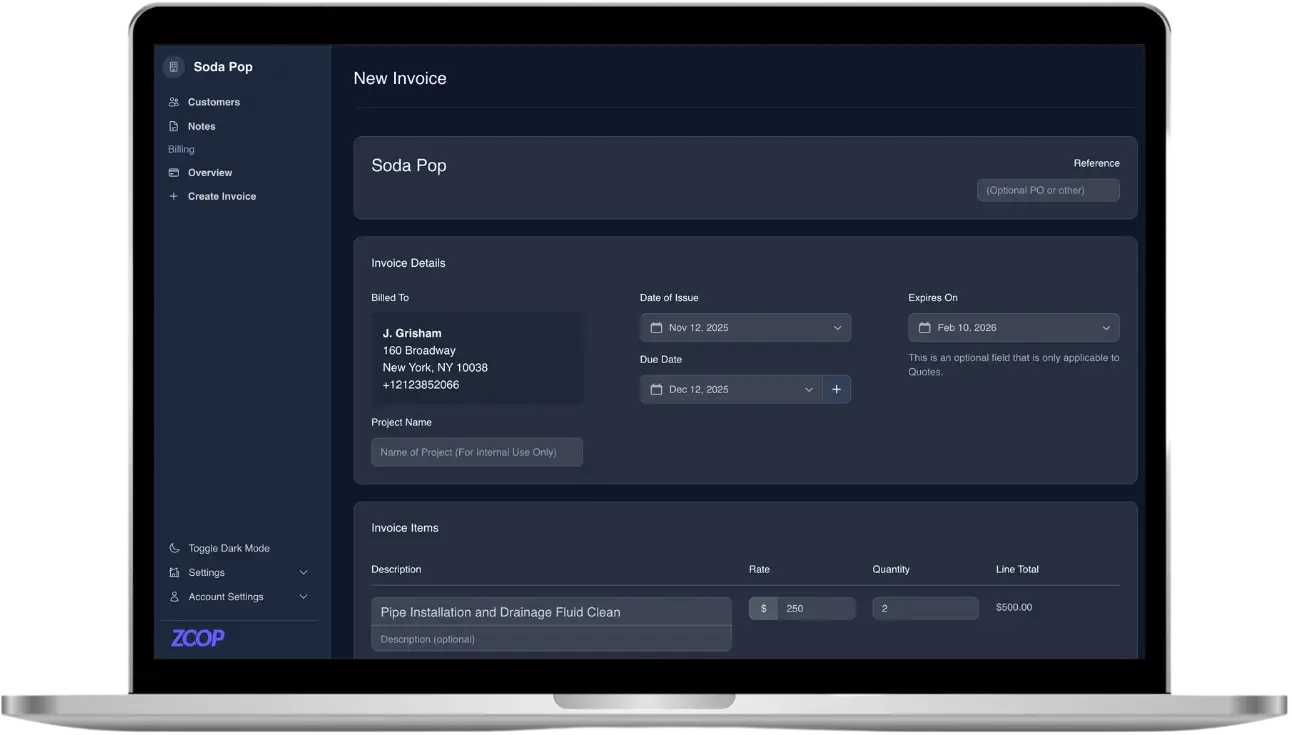
Getting paid fast starts before the payment itself. A clear invoice gives the customer no reason to hesitate. Build it from line items in your pricebook, apply the right tax rate, and you have a clean, professional total in a few taps. Approve a quote and turn it into an invoice in one click so the moment a customer says yes, the bill is ready.
If an invoice does go unpaid, automated dunning reminders nudge the customer for you instead of you having to make the uncomfortable follow-up call. And for steady customers, recurring invoices go out on their own each cycle.
What about refunds?
Sometimes you have to give money back, whether a job got cancelled or a customer was overcharged. Issuing a refund against the original payment keeps the record straight and the customer gets their money back to the same card. Handling it cleanly, rather than fumbling with a separate cash refund, protects your reputation and your bookkeeping.
A simple field-payment workflow that works
- Build the invoice from your pricebook before or right after the job, with the correct tax applied.
- Send a secure payment link by text and let the customer pay by card, bank transfer, or Apple Pay and Google Pay from their phone.
- For repeat customers, save the card on file or set up a recurring plan with authorized auto-pay.
- Record any cash, check, or app payments against the same invoice so nothing falls through the cracks.
- Let automated reminders chase down anything still unpaid.
How Zoop helps
Zoop runs payments on Stripe, so you can accept credit card payments in the field through secure, signed payment links your customers pay from their phone with no login. Cards and bank transfer (ACH) are built in, Apple Pay and Google Pay show up automatically on supported devices, and you can save cards on file for repeat work or put customers on a recurring plan with authorized auto-pay. Build invoices from your pricebook with tax rates, turn a quote into an invoice in one click, send dunning reminders, issue refunds, and record offline payments like cash, check, Zelle, Venmo, and Cash App, all against the same invoice. Scheduling, a dispatch board, and your customer CRM live right alongside it, so the job and the payment are never in two different places.
Zoop is free during beta. Start getting paid faster at https://app.zoop.pro/start.